
How fast is the traffic past your school at drop-off and pick-up?
Record the minutes around the bell for a few school days, and see how many vehicles pass, how fast, and which school-run hour has the highest share over the limit.
이 가이드는 현재 영어로만 제공됩니다.
In a 2025 survey of 2,010 parents and carers of primary school children by the UK road safety charity Brake, 41% said traffic moves too fast near their child’s school, even on roads with a 20mph limit. You can see how fast it goes past your own school. Set an iPhone in a window or on a tripod looking across the school road, record the minutes around the bell for a few school days, and SpeedCam AI shows how many vehicles passed, how fast they went and the share over the limit.
Find out the limit outside the school
Set the app to the limit that applies at the time you record, so its share over the limit means what you expect, and check the signs outside the school to find it. In the same Brake survey, 81% of parents said some or all of the roads around their child’s school have a 20mph limit, and 14% said none do. Outside a UK school it is usually one of these.
- 20mph all day. In Wales, 20mph has been the default limit on restricted roads, usually residential streets with street lights, since September 2023.
- 20mph at school times only. In England a 20mph limit can apply only at certain times of day, for a school on a road that does not suit a full-time 20mph limit. The signs show when it applies.
- An advisory 20mph sign with flashing school warning lights. The same guidance describes it as another option. It recommends 20mph rather than setting a limit, so the road’s limit is what its speed limit signs say. You can still set 20 mph in the app to see the share over it.
- 30mph, where no lower limit applies.
If the road outside is a School Street, it has a temporary restriction on motor traffic at drop-off and pick-up times. The traffic to look at is then on the roads around it.
1. Put the phone where it sees the school road
A window of your own that looks onto the school road works well, or one a neighbour or the school lets you use, or a tripod beside the road. Turn the iPhone a little to one side, so cars cross the picture rather than drive towards it, and keep the lane you want close enough that a passing car fills at least a quarter of the picture’s width. Point it at the road rather than the school gate.
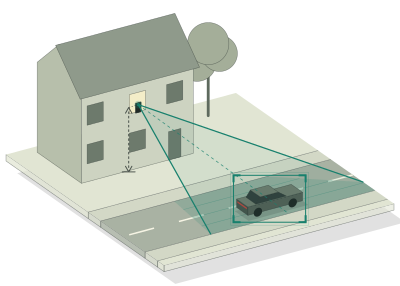
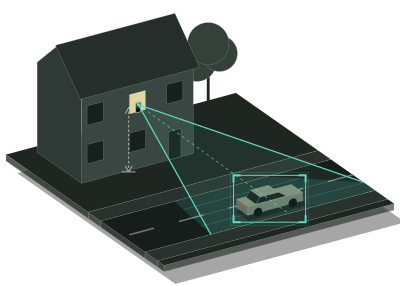
For more accurate speeds, measure how high the phone sits above the road and enter it in Settings › Capture › Camera height.
2. Record the school run
Tap Start Detecting about 20 minutes before the bell and Stop about 15 minutes after it, then do the same at pick-up. One morning can be a quiet one, so record at least three school days, and a whole week if you can. Keep SpeedCam AI open on screen with the phone on charge, because leaving the app ends the session. The status at the top reads “Learning this view” and then “Measuring”, and speeds show from the start.
In the New Session sheet, set Speed Limit to the limit at school times, and give the mornings one Campaign name, such as “School run mornings”, and the afternoons another. Analytics can then show either one on its own.
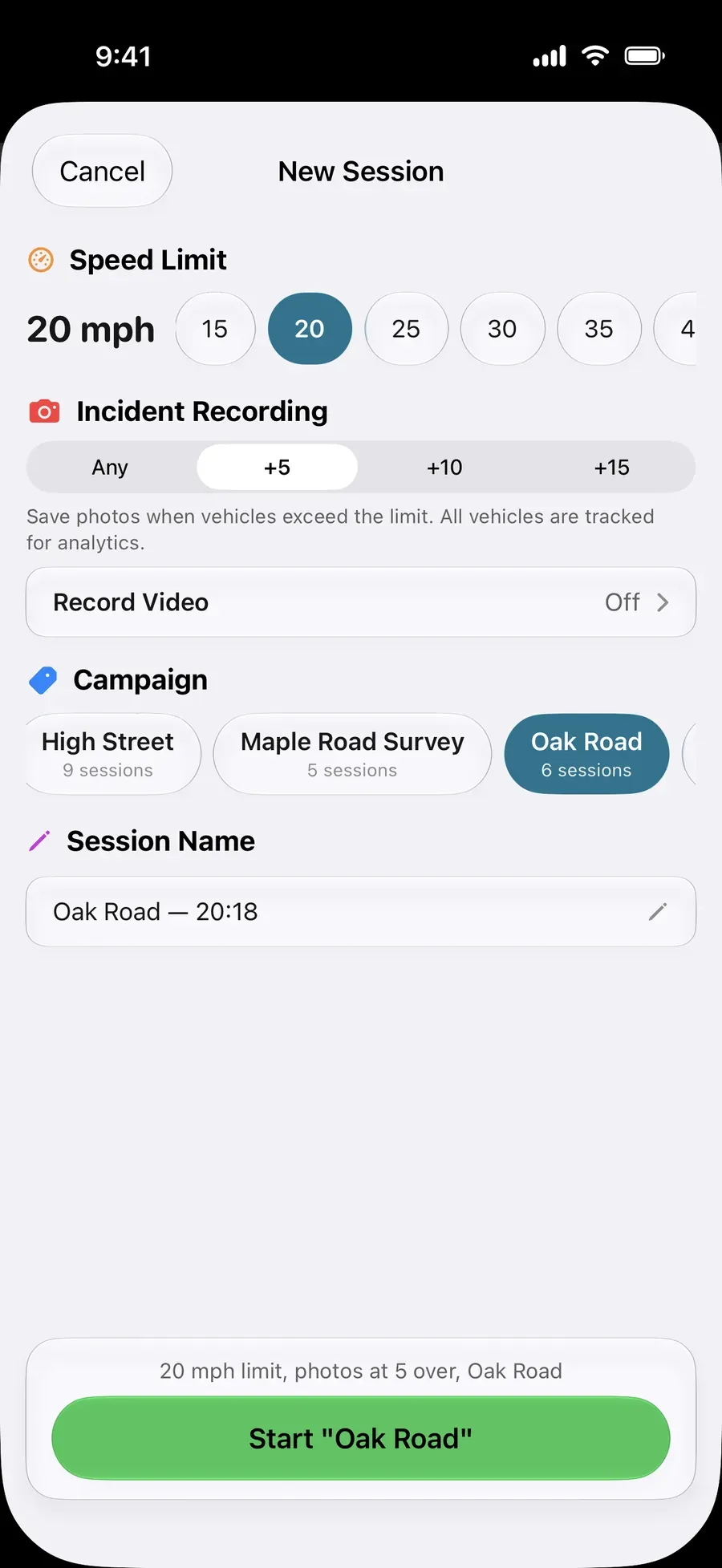
Each session keeps the limit it was recorded with, and every vehicle is measured against its own session’s limit. To compare with the rest of the day, record a weekday evening, or the same clock times at the weekend, at the limit that applies then, under a third campaign name. Over Limit measures each session against its own limit, so compare the typical speeds too. Set the limit when you start each session, because Edit Speed Limit on a past session changes its figures.
3. Read the school run in Analytics
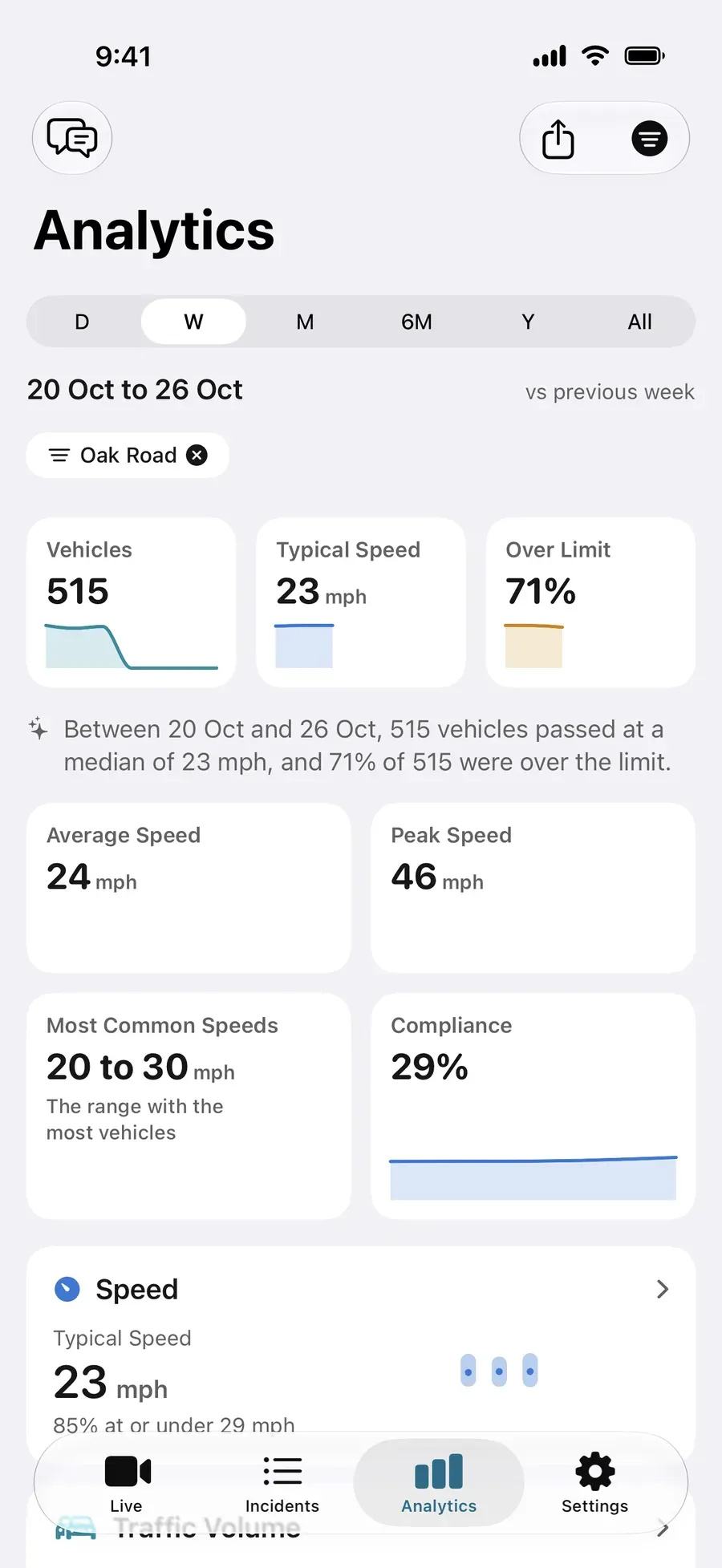
Open Analytics, tap Filter and choose the mornings campaign under Campaign. Then choose the afternoons one.
| What you want to know | Where SpeedCam AI shows it | Without Pro |
|---|---|---|
| How many vehicles passed | Vehicles, the first card | Shown |
| The median of the measured speeds | Typical Speed | Shown |
| The share over the limit | Over Limit, against each session’s limit | Shown |
| The speed 85% of measured vehicles stay at or under | 85th Percentile, and the Speed card | The figure is shown, the card is Pro |
| Which hours have the highest share over the limit | When, switched to Over Limit | Pro |
| How many people walk and cycle past | The People card | Pro |
Without Pro, each session is kept on your iPhone, locked, and Analytics shows its figures under Locked. Pro opens the charts, the photos and the report. Annual starts with a 3-day free trial for new subscribers, or choose Lifetime, one payment.
4. See which hours stand out (Pro)
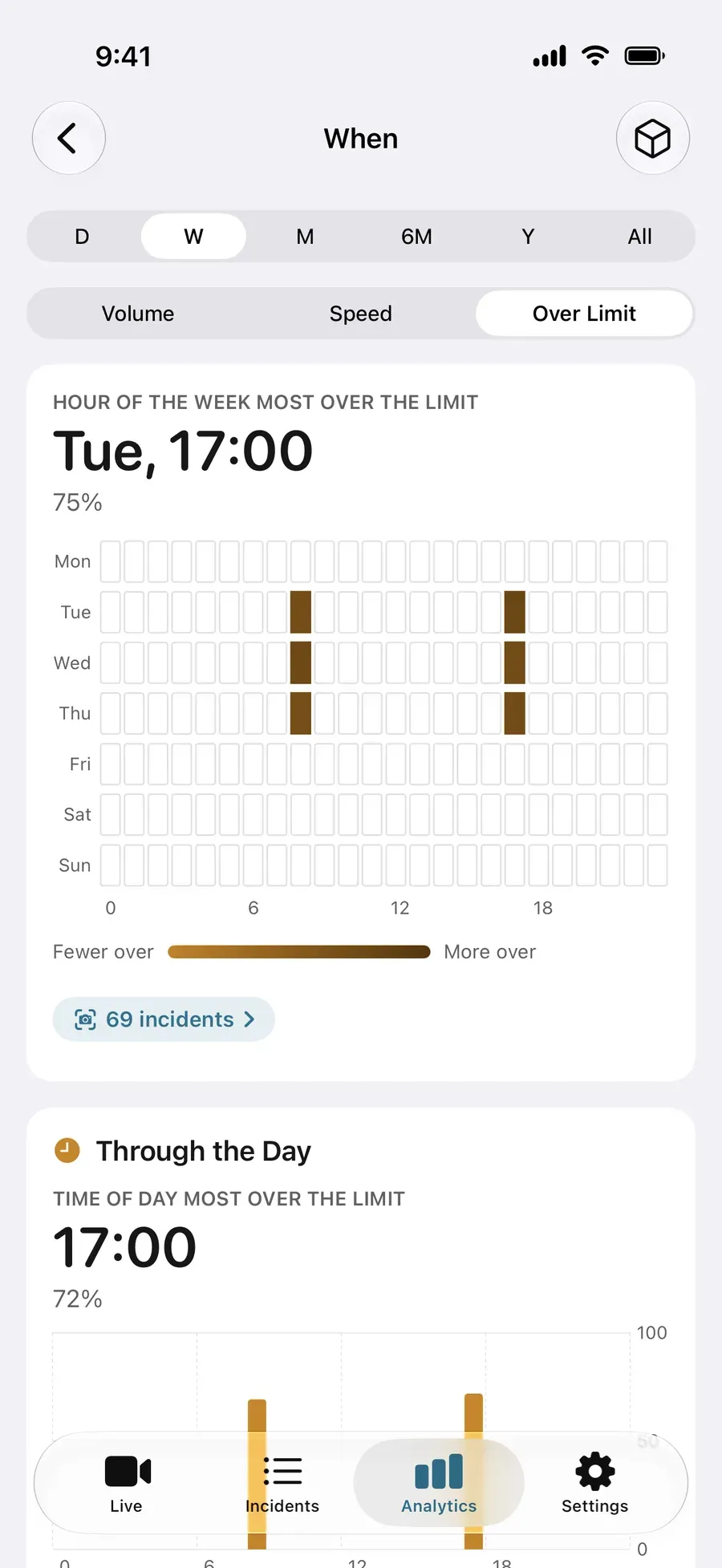
When lays the week out hour by hour. On Volume it names the busiest hour of the week. Switch to Over Limit and each hour is shaded by the share of vehicles over their limit, so you can see whether the morning run or the afternoon one has more. The grid counts by the hour, so a session from 08:25 to 09:05 shows in the 08:00 and 09:00 cells.
The People card counts people walking and on bicycles past the live camera.
5. Keep a copy (Pro)
With a campaign chosen, Export in Analytics follows it. Report (PDF) has the summary figures on its first page, a line on how the speeds were measured and the speed distribution, then the charts and the table of incidents. Vehicles (CSV) lists every vehicle with its time and, where one was measured, its speed.
At a US school
At a US school, the signs say what the school zone limit is and when it applies. Some signs have a separate plaque with set times or a condition such as WHEN CHILDREN ARE PRESENT. Others combine the limit and WHEN FLASHING on one sign with a flashing beacon, or show the limit only while it applies. Set that limit in the New Session sheet for the sessions you record while it applies, and the road’s usual limit for the rest. In a 2022 to 2023 survey at 118 Washington State schools with a 20 mph school zone, nearly three in four drivers observed were over the limit, 78% of drivers passing the school and 53% of those going in or out. For the steps towards a speed hump on your street, read what does it take to get a speed hump on your street?
What it is
It is your own count of the traffic past your school, with how many vehicles passed, how fast and when, measured on your iPhone. Vehicles are detected on the phone, the app reads no number plates, and your recordings are never sent to us. A photo is taken only when a car passes over your limit by the margin you choose, 5 mph by default, and it shows whatever the camera sees, so point the phone at the road. A video clip is recorded only if you choose one under Record Video (Pro).
Sources
Read on 3 November 2026.
- Brake, What do parents think about their children’s journeys to school in 2025? (2025, survey carried out in May 2025), questions 8 and 9, from a survey of 2,010 parents and carers of children aged 4 to 11.
- Department for Transport, Setting local speed limits, updated 17 March 2024, paragraphs 106 and 107, on 20mph limits at certain times of day near a school and the advisory part-time 20mph sign with flashing school warning lights (England).
- Welsh Government, Introducing default 20mph speed limits, on the default 20mph limit on restricted roads from September 2023.
- Transport for London, School Streets (Travel for Life), on what a School Street is.
- Federal Highway Administration, MUTCD 11th Edition, Part 7, Section 7B.05, on school speed limit signs and the plaques that say when they apply.
- Washington Traffic Safety Commission, Driver Speeding Behavior in 20 mph School Zones (December 2023), the 2022 to 2023 survey of 118 schools.
Next steps
자주 묻는 질문.
How can I see how fast cars go past my child’s school?
Set an iPhone in a window or on a tripod looking across the school road, open SpeedCam AI and tap Start Detecting about 20 minutes before the bell. Live speeds show on screen in mph. Record a few school days, and Analytics shows how many vehicles passed, their typical speed and the share over the limit you set.
When should I record?
From about 20 minutes before the bell to about 15 minutes after it, in the morning and again at pick-up, on at least three school days. A whole week lets you compare every school day. Give the mornings one Campaign name and the afternoons another.
The limit is 20mph only at school times. Which limit do I set?
Set 20 mph in the New Session sheet for the sessions you record while the lower limit applies, and the road’s usual limit for sessions at other times. Each session keeps the limit it was recorded with, so set it when you start. Edit Speed Limit on a past session changes its figures.
The road outside is a School Street. Is there anything to measure?
A School Street has a temporary restriction on motor traffic at drop-off and pick-up times, so the traffic to look at is on the roads around it. Record those roads the same way.
Will children be in the photos?
They can be. A photo is taken when a car passes over your limit by the margin you choose, 5 mph by default, and it shows whatever the camera sees, people on the pavement included. Point the phone at the road and keep the school gate out of the picture. No video is recorded unless you choose a clip under Record Video in the New Session sheet, which is Pro. Photos stay on your iPhone, or in your own iCloud Drive if you turn on Keep in iCloud (Pro). The app reads no number plates, and your recordings are never sent to us.
Is it free?
Live speeds on screen are free, with no account. Without Pro, Start Detecting still records the session and keeps it on your iPhone, locked, and Analytics shows its vehicle count, typical speed, share over the limit and 85th percentile. Pro opens the charts, the photos and the PDF report. Annual starts with a 3-day free trial for new subscribers, or choose Lifetime, one payment. See Pricing.