
Count your street’s traffic with your own security camera
If a camera already looks at your street, SpeedCam AI on your iPhone can count the traffic it sees, with speeds where the view allows. Cameras are part of Pro.
このガイドは現在、英語版のみご利用いただけます。
If a camera on your house already looks at the street, you can use it to count the traffic. SpeedCam AI on your iPhone connects to a camera that streams RTSP or HTTP MJPEG on your home network. It counts every vehicle the camera sees, shows speeds where the camera’s view allows, and saves the session for the same charts as the iPhone’s own camera. Connecting a camera is part of Pro.
What your camera needs
- A video stream on your network. An RTSP address, such as
rtsp://192.168.1.50:554/stream1, or an HTTP MJPEG stream. Your camera’s app or settings usually list it as an RTSP or HTTP address. - Not only the cloud. A camera that only streams to its maker’s cloud, with no RTSP or MJPEG address, cannot connect.
- Your iPhone, open and unlocked. The stream runs only while SpeedCam AI is open on the iPhone and the iPhone is unlocked, so the iPhone stays with it, on charge, for as long as you count.
- A view across the road. As with the iPhone, the camera gives the most speeds when passing cars cross the picture rather than drive towards it.
Connect it
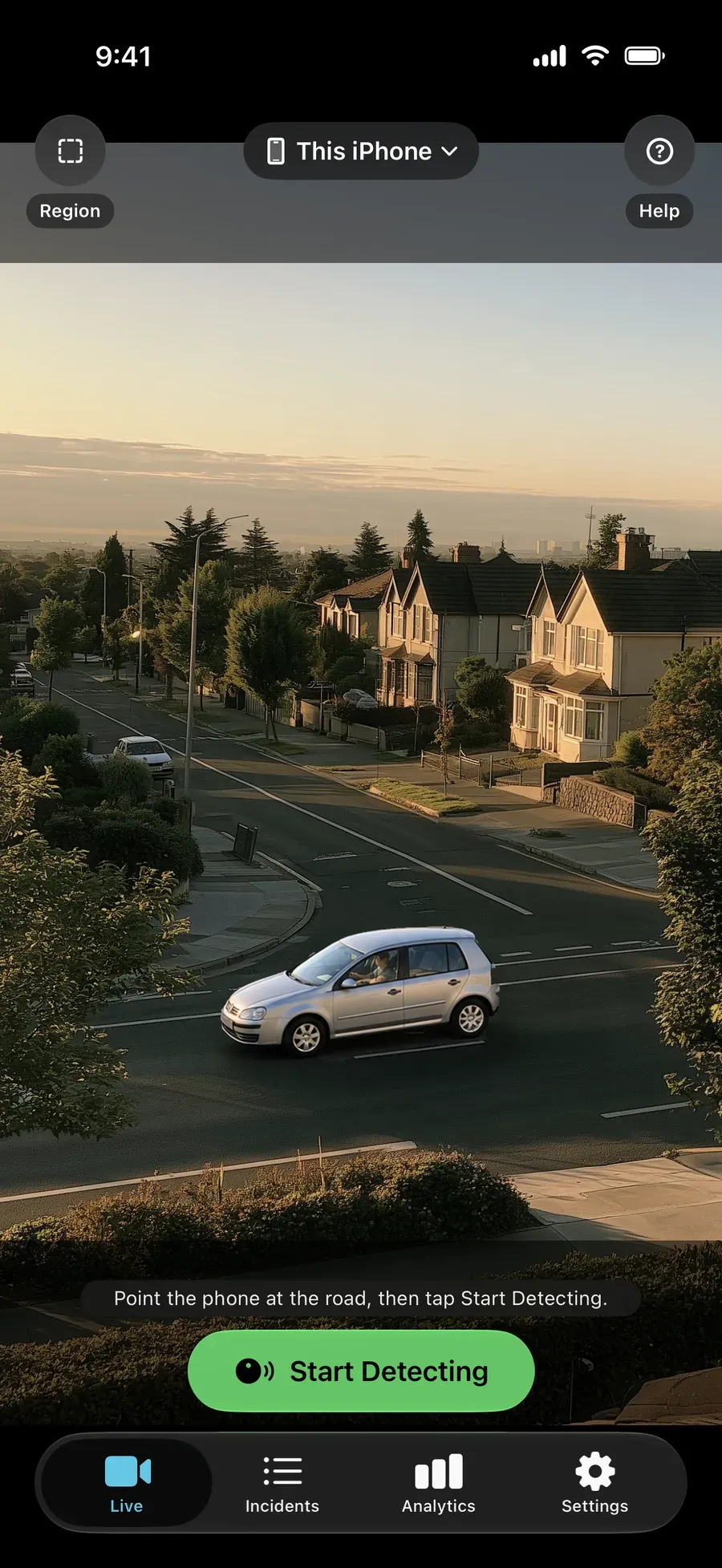
- Open Settings › Cameras › Connect IP Camera, or tap This iPhone at the top of the Live tab and choose Connect IP Camera…
- Tap Scan for Cameras to look for cameras on your network, or type the camera’s address in Stream URL. If the camera needs a login, add it under Camera Login (Optional).
- Choose the Camera Field of View. Security cam (130°) is selected at the start; the others include iPhone (77°), Wide-angle cam (110°), Security cam (140°) and Custom.
- Tap Connect. To keep the camera, save it: up to 12 cameras stay saved, with their passwords kept in the iPhone’s Keychain and unlocked with Face ID or your passcode.
What it counts and saves
- Every vehicle the camera sees is counted, and the session is saved like one on the iPhone’s camera, named IP Camera with the date and time.
- Speeds where the view allows. Where a reading cannot be measured from the camera’s view, the card shows — with the reason, such as Too far or Not crossing, and the vehicle is still counted.
- Cars over your limit, by the margin you choose, are saved with a photo, its speed and the time. A stream saves one photo per car and no video clip.
- The view is learned first. As on the iPhone, the app learns the view from the first vehicles before it saves cars over the limit.
- Region and Line. On the stream screen, Region keeps detection to the part of the picture you draw, and Line marks two points along the road with the distance between them, which you measure and enter. To keep them, save the camera first, then connect from Saved Cameras and draw them: they come back each time you connect from that saved camera.
People walking and cycling are counted on the iPhone’s own camera only, not from a camera stream. The stream screen shows the speed cards; boxes around vehicles are drawn on the iPhone’s camera.
Keep the iPhone on
The stream runs while SpeedCam AI is open on the iPhone and the iPhone is unlocked. The app keeps the screen awake while it is connected; leaving the app or locking the phone ends the stream. Keep the iPhone on charge for a long session.
See the numbers
When the stream ends, View in Analytics opens that session. Or open the Analytics tab and choose the period: Vehicles, Typical Speed and Over Limit sit in the first row, the Speed card adds the speed 85% of traffic stays at or under, and When lays the week out hour by hour.
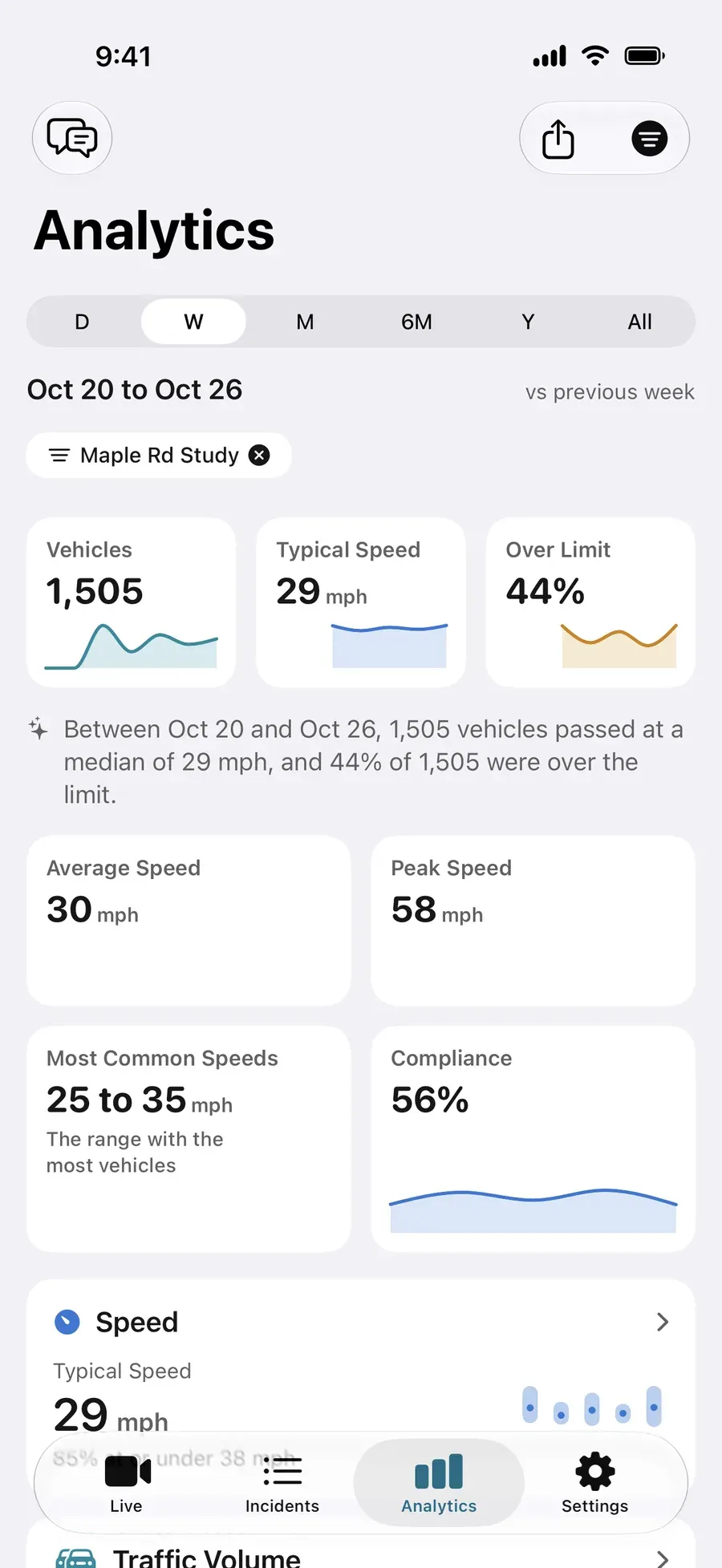
Export a PDF report, or every measured vehicle as Vehicles (CSV), from the same screen. To send each saved incident, and each session as it starts and ends, to Home Assistant, Zapier, IFTTT or your own server, turn on webhooks in Automation (Pro).
What it is
It is your own count of your own street, from a camera you already own. The stream goes from the camera to your iPhone over your network, vehicles are detected on the iPhone, and your recordings are never sent to us.
Next steps
ご質問にお答えします。
Can I use my security camera to see the speed of cars on my street?
Yes, if it streams RTSP or HTTP MJPEG on your home network. SpeedCam AI on your iPhone connects to the stream, counts every vehicle the camera sees and shows speeds where the view allows. Connecting a camera is part of Pro.
Which cameras work?
A camera that offers an RTSP address (rtsp://…) or an HTTP MJPEG stream on your network. Look in the camera’s app or settings for an RTSP or HTTP address. A camera that only streams to its maker’s cloud, with no such address, cannot connect.
Does the iPhone have to stay on?
Yes. The stream runs while SpeedCam AI is open on the iPhone and the iPhone is unlocked; the app keeps the screen awake while it is connected. Leaving the app or locking the phone ends the stream, so keep the iPhone on charge.
Does it count people walking and cycling?
Not from a camera stream. People walking and cycling are counted on the iPhone’s own camera.
Does it work with Home Assistant?
SpeedCam AI can send each saved incident, and each session as it starts and ends, to Home Assistant, Zapier, IFTTT or your own server with webhooks (Pro). See Automation.
Is it free?
Live speeds on the iPhone’s own camera are free. Connecting a camera is Pro: Annual starts with a 3-day free trial for new subscribers, or choose Lifetime, one payment. See Is SpeedCam AI free?